
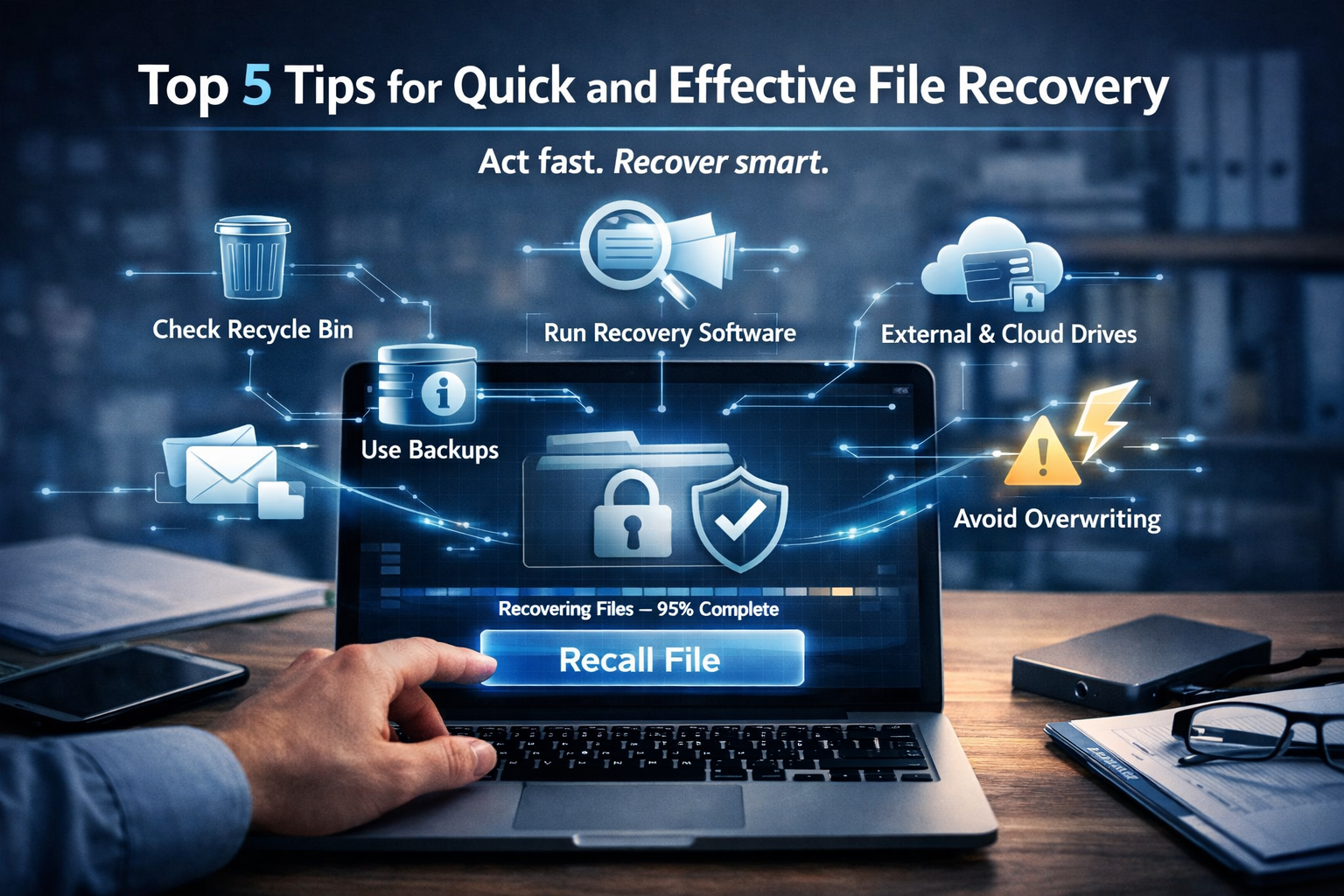
Top 5 Tips for Quick and Effective File Recovery
Introduction
Few things are more frustrating than discovering that an important file has disappeared. Whether it’s a critical business document, family photos, financial records, project files, or confidential client information, losing access to valuable data can cause stress, disruption, and even financial loss.
Fortunately, deleted or missing files are often not gone forever. In many cases, files can be recovered if you act quickly and use the right recovery methods.
Understanding how file recovery works and knowing what steps to take immediately after data loss can significantly improve your chances of success.
In this guide, we’ll explore the top five tips for quick and effective file recovery, including how to restore deleted files, recover data from backups, use recovery software, and prevent permanent data loss in the future.

Why Files Get Lost
Before discussing recovery techniques, it’s important to understand why files disappear in the first place.
Common causes of file loss include:
-
Accidental deletion
-
Hard drive failures
-
Software crashes
-
System updates
-
Virus or malware infections
-
Formatting errors
-
Corrupted storage devices
-
Human error
-
Cloud synchronization issues
Regardless of the cause, the key to successful recovery is acting quickly and avoiding actions that could overwrite recoverable data.
1. Check Your Recycle Bin or Trash Folder First
One of the simplest and most effective file recovery methods is checking your system’s built-in deleted files folder.
Many users assume a deleted file is permanently gone when, in reality, it has simply been moved to a temporary holding area.
Windows Users
When files are deleted, they are usually moved to the Recycle Bin.
To recover deleted files:
-
Open the Recycle Bin.
-
Search for the missing file.
-
Right-click the file.
-
Select Restore.
The file will return to its original location.
macOS Users
Deleted files are typically moved to the Trash.
To restore them:
-
Open the Trash folder.
-
Locate the deleted file.
-
Right-click the file.
-
Select Put Back.
The file will be restored to its previous location.
Why This Matters
Many file recovery situations are resolved in seconds simply by checking these folders first. Before investing time or money in recovery software, always verify that the file hasn’t simply been moved to your operating system’s recovery area.
2. Use File History or Backup Systems
One of the most reliable ways to recover lost files is through backups.
Modern operating systems include built-in backup features that automatically save copies of your files over time.
Windows File History
Windows File History can restore previous versions of files and folders.
To use File History:
-
Open Settings.
-
Select Update & Security.
-
Click Backup.
-
Choose Restore Files from a Current Backup.
-
Browse available versions and restore the desired file.
Backup and Restore
Older Windows systems may use Backup and Restore, which allows recovery from scheduled system backups.
Time Machine on macOS
Apple’s Time Machine is one of the most effective file recovery systems available.
To restore a file:
-
Connect your Time Machine drive.
-
Open the folder where the file was originally stored.
-
Enter Time Machine.
-
Browse previous versions.
-
Select the file and click Restore.
Cloud Backup Services
Many users also benefit from cloud backup platforms such as:
-
Google Drive
-
OneDrive
-
Dropbox
-
iCloud
These services often maintain deleted-file recovery areas and version histories.
Why Backups Are Critical
The most successful file recovery strategy is preventing permanent loss before it occurs. Regular backups provide a safety net that can save hours of frustration and potentially thousands of dollars in recovery costs.
3. Use Professional File Recovery Software
If your file isn’t in the Recycle Bin and no backup exists, specialized recovery software may be your best option.
When files are deleted, the data often remains on the storage device until it is overwritten by new information.
Recovery software scans storage devices for recoverable data and attempts to reconstruct deleted files.
Popular Recovery Tools
Recuva
A popular recovery solution for Windows users.
Benefits:
-
Easy to use
-
Free version available
-
Effective for accidental deletions
Disk Drill
Available for both Windows and macOS.
Features include:
-
Deep scanning
-
Recovery previews
-
Support for multiple file types
EaseUS Data Recovery Wizard
Suitable for more complex recovery situations.
Benefits:
-
Advanced scanning capabilities
-
Partition recovery
-
Recovery from formatted drives
Choosing Recovery Software
When selecting recovery software, consider:
-
Ease of use
-
Supported file types
-
Operating system compatibility
-
Recovery success rates
-
Cost
Important Tip
Install recovery software on a different drive whenever possible. Installing software on the affected drive may overwrite recoverable data.
4. Check External Drives and Cloud Storage
Many missing files are not actually deleted—they have simply been moved or stored elsewhere.
Before assuming data loss, check all locations where your files may reside.
External Hard Drives
Connect any external drives and search for:
-
Hidden files
-
Moved folders
-
Backup copies
USB Flash Drives
Verify that the file was not saved to a removable drive.
Network Storage Devices
Businesses frequently use network-attached storage (NAS) systems that maintain file copies and backups.
Cloud Storage Platforms
Cloud services often include:
-
Deleted item folders
-
Version history
-
Automatic backups
-
Recovery tools
Check:
-
Google Drive Trash
-
OneDrive Recycle Bin
-
Dropbox Deleted Files
-
iCloud Recently Deleted
File Synchronization Issues
Sometimes files appear missing due to synchronization errors rather than deletion.
Verify that cloud services have completed syncing before beginning more advanced recovery procedures.
5. Avoid Overwriting Recoverable Data
This is arguably the most important file recovery tip of all.
When a file is deleted, the data often remains physically present on the storage device.
However, new activity can overwrite that data permanently.
Once overwritten, recovery becomes extremely difficult or impossible.
What Not to Do
Avoid:
-
Installing software on the affected drive
-
Downloading large files
-
Creating new documents
-
Moving large amounts of data
-
Running unnecessary applications
What You Should Do
Instead:
-
Stop using the affected device immediately.
-
Disconnect external storage if necessary.
-
Begin recovery procedures as soon as possible.
-
Use recovery software from another drive.
-
Create backups before attempting advanced recovery.
Why Speed Matters
The longer a storage device remains active after file deletion, the greater the chance that recoverable data will be overwritten.
Quick action dramatically improves recovery success rates.
How to Prevent Future File Loss
While recovery is important, prevention is even better.
To reduce the risk of losing important files:
Create Regular Backups
Maintain both local and cloud backups.
Enable Automatic Backup Systems
Use tools such as:
-
Time Machine
-
Windows File History
-
Cloud synchronization services
Keep Multiple Copies
Follow the 3-2-1 backup strategy:
-
Three copies of data
-
Two different storage types
-
One offsite backup
Protect Against Malware
Use reputable antivirus and cybersecurity tools.
Secure Important Documents
For sensitive files, consider using secure file-sharing and document management solutions that provide controlled access, version history, and protection against accidental deletion.
Conclusion
Losing important files can be stressful, but successful file recovery is often possible if you act quickly and follow the right process.
Start by checking your Recycle Bin or Trash folder, then explore backup systems such as File History or Time Machine. If necessary, use professional recovery software, inspect external storage devices and cloud platforms, and most importantly, avoid overwriting potentially recoverable data.
The best recovery strategy combines quick action with good preparation. By maintaining regular backups and implementing strong file management practices, you can dramatically reduce the risk of permanent data loss and ensure that your most important files remain protected.
Top 5 Tips for Quick and Effective File Recovery
Introduction
Few things are more frustrating than discovering that an important file has disappeared. Whether it’s a critical business document, family photos, financial records, project files, or confidential client information, losing access to valuable data can cause stress, disruption, and even financial loss.
Fortunately, deleted or missing files are often not gone forever. In many cases, files can be recovered if you act quickly and use the right recovery methods.
Understanding how file recovery works and knowing what steps to take immediately after data loss can significantly improve your chances of success.
In this guide, we’ll explore the top five tips for quick and effective file recovery, including how to restore deleted files, recover data from backups, use recovery software, and prevent permanent data loss in the future.
Why Files Get Lost
Before discussing recovery techniques, it’s important to understand why files disappear in the first place.
Common causes of file loss include:
-
Accidental deletion
-
Hard drive failures
-
Software crashes
-
System updates
-
Virus or malware infections
-
Formatting errors
-
Corrupted storage devices
-
Human error
-
Cloud synchronization issues
Regardless of the cause, the key to successful recovery is acting quickly and avoiding actions that could overwrite recoverable data.
1. Check Your Recycle Bin or Trash Folder First
One of the simplest and most effective file recovery methods is checking your system’s built-in deleted files folder.
Many users assume a deleted file is permanently gone when, in reality, it has simply been moved to a temporary holding area.
Windows Users
When files are deleted, they are usually moved to the Recycle Bin.
To recover deleted files:
-
Open the Recycle Bin.
-
Search for the missing file.
-
Right-click the file.
-
Select Restore.
The file will return to its original location.
macOS Users
Deleted files are typically moved to the Trash.
To restore them:
-
Open the Trash folder.
-
Locate the deleted file.
-
Right-click the file.
-
Select Put Back.
The file will be restored to its previous location.
Why This Matters
Many file recovery situations are resolved in seconds simply by checking these folders first. Before investing time or money in recovery software, always verify that the file hasn’t simply been moved to your operating system’s recovery area.
2. Use File History or Backup Systems
One of the most reliable ways to recover lost files is through backups.
Modern operating systems include built-in backup features that automatically save copies of your files over time.
Windows File History
Windows File History can restore previous versions of files and folders.
To use File History:
-
Open Settings.
-
Select Update & Security.
-
Click Backup.
-
Choose Restore Files from a Current Backup.
-
Browse available versions and restore the desired file.
Backup and Restore
Older Windows systems may use Backup and Restore, which allows recovery from scheduled system backups.
Time Machine on macOS
Apple’s Time Machine is one of the most effective file recovery systems available.
To restore a file:
-
Connect your Time Machine drive.
-
Open the folder where the file was originally stored.
-
Enter Time Machine.
-
Browse previous versions.
-
Select the file and click Restore.
Cloud Backup Services
Many users also benefit from cloud backup platforms such as:
-
Google Drive
-
OneDrive
-
Dropbox
-
iCloud
These services often maintain deleted-file recovery areas and version histories.
Why Backups Are Critical
The most successful file recovery strategy is preventing permanent loss before it occurs. Regular backups provide a safety net that can save hours of frustration and potentially thousands of dollars in recovery costs.
3. Use Professional File Recovery Software
If your file isn’t in the Recycle Bin and no backup exists, specialized recovery software may be your best option.
When files are deleted, the data often remains on the storage device until it is overwritten by new information.
Recovery software scans storage devices for recoverable data and attempts to reconstruct deleted files.
Popular Recovery Tools
Recuva
A popular recovery solution for Windows users.
Benefits:
-
Easy to use
-
Free version available
-
Effective for accidental deletions
Disk Drill
Available for both Windows and macOS.
Features include:
-
Deep scanning
-
Recovery previews
-
Support for multiple file types
EaseUS Data Recovery Wizard
Suitable for more complex recovery situations.
Benefits:
-
Advanced scanning capabilities
-
Partition recovery
-
Recovery from formatted drives
Choosing Recovery Software
When selecting recovery software, consider:
-
Ease of use
-
Supported file types
-
Operating system compatibility
-
Recovery success rates
-
Cost
Important Tip
Install recovery software on a different drive whenever possible. Installing software on the affected drive may overwrite recoverable data.
4. Check External Drives and Cloud Storage
Many missing files are not actually deleted—they have simply been moved or stored elsewhere.
Before assuming data loss, check all locations where your files may reside.
External Hard Drives
Connect any external drives and search for:
-
Hidden files
-
Moved folders
-
Backup copies
USB Flash Drives
Verify that the file was not saved to a removable drive.
Network Storage Devices
Businesses frequently use network-attached storage (NAS) systems that maintain file copies and backups.
Cloud Storage Platforms
Cloud services often include:
-
Deleted item folders
-
Version history
-
Automatic backups
-
Recovery tools
Check:
-
Google Drive Trash
-
OneDrive Recycle Bin
-
Dropbox Deleted Files
-
iCloud Recently Deleted
File Synchronization Issues
Sometimes files appear missing due to synchronization errors rather than deletion.
Verify that cloud services have completed syncing before beginning more advanced recovery procedures.
5. Avoid Overwriting Recoverable Data
This is arguably the most important file recovery tip of all.
When a file is deleted, the data often remains physically present on the storage device.
However, new activity can overwrite that data permanently.
Once overwritten, recovery becomes extremely difficult or impossible.
What Not to Do
Avoid:
-
Installing software on the affected drive
-
Downloading large files
-
Creating new documents
-
Moving large amounts of data
-
Running unnecessary applications
What You Should Do
Instead:
-
Stop using the affected device immediately.
-
Disconnect external storage if necessary.
-
Begin recovery procedures as soon as possible.
-
Use recovery software from another drive.
-
Create backups before attempting advanced recovery.
Why Speed Matters
The longer a storage device remains active after file deletion, the greater the chance that recoverable data will be overwritten.
Quick action dramatically improves recovery success rates.
How to Prevent Future File Loss
While recovery is important, prevention is even better.
To reduce the risk of losing important files:
Create Regular Backups
Maintain both local and cloud backups.
Enable Automatic Backup Systems
Use tools such as:
-
Time Machine
-
Windows File History
-
Cloud synchronization services
Keep Multiple Copies
Follow the 3-2-1 backup strategy:
-
Three copies of data
-
Two different storage types
-
One offsite backup
Protect Against Malware
Use reputable antivirus and cybersecurity tools.
Secure Important Documents
For sensitive files, consider using secure file-sharing and document management solutions that provide controlled access, version history, and protection against accidental deletion.
Conclusion
Losing important files can be stressful, but successful file recovery is often possible if you act quickly and follow the right process.
Start by checking your Recycle Bin or Trash folder, then explore backup systems such as File History or Time Machine. If necessary, use professional recovery software, inspect external storage devices and cloud platforms, and most importantly, avoid overwriting potentially recoverable data.
The best recovery strategy combines quick action with good preparation. By maintaining regular backups and implementing strong file management practices, you can dramatically reduce the risk of permanent data loss and ensure that your most important files remain protected.