
How to Share Files with Google Drive (And When It’s Not Secure Enough)
Google Drive is the default answer for most people when they need to share a file. It’s free, it’s already open in your browser, and everyone knows how to use it. Type a search for “file share google drive” or “file share with google drive” and you’ll find dozens of tutorials showing you the same five clicks.
But for professionals handling sensitive documents — financial statements, legal contracts, client records, due diligence materials — the default option isn’t always the safe one. This guide walks through exactly how to share files with Google Drive, where its limitations start to matter, and what to use instead once “good enough” isn’t good enough anymore.
How to Share a File on Google Drive
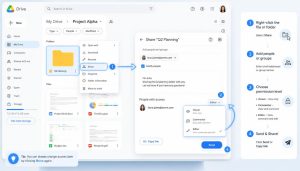
- Open Google Drive and upload the file you want to share.
- Right-click the file and select Share.
- Enter the email address of the person you’re sharing with, or click Get link to generate a shareable URL.
- Set permissions: Viewer, Commenter, or Editor.
- Click Send, or copy the link and send it however you like.
That’s the whole process. It takes under a minute, which is exactly why it’s the go-to for so many people and teams.
Sharing a Folder Instead of a Single File
If you’re sending multiple documents — say, a client’s full set of financial records, or every file related to a matter — it’s usually faster to share a folder rather than individual files.
- Create a folder in Google Drive and move the relevant files into it.
- Right-click the folder and select Share.
- Choose whether to invite specific people or generate a link.
- Set the permission level for the whole folder at once.
This saves you from sending five separate links, but it also means anyone with access sees everything in that folder — including anything added later. It’s worth double-checking folder contents before sharing, and being deliberate about what goes into a shared folder versus what stays private.
Setting Expiration Dates and Restricting Access
Google Drive (on Workspace accounts) lets you set an expiration date on shared access, after which the link stops working. This is a genuinely useful feature for time-limited engagements — a contractor who only needs access for a project, or a client review window that closes on a specific date.
To set it: open the sharing settings, click on the person’s access level, and choose Add expiration. It’s only available for people you’ve shared with directly by email, not for “anyone with the link” access.
Worth knowing: expiration stops *future* access. If someone already downloaded the file before the expiration date hit, revoking access does nothing to that copy sitting on their computer.
Where Google Drive Falls Short for Sensitive Documents
Google Drive was built for collaboration, not confidentiality. A few gaps show up quickly once you’re sharing anything sensitive:
- No control after the download. Once someone with “Viewer” access opens a file, nothing stops them from downloading a copy, printing it, or forwarding the link to someone else. Permissions control access to the link itself — not what happens to the content once it’s been viewed.
- No watermarking. If a confidential document leaks or turns up somewhere it shouldn’t, there’s no way to trace which recipient it came from. Every copy looks identical.
- Link sharing is risky by default. “Anyone with the link can view” is a common setting people forget to lock down, and it’s one of the most frequent causes of accidental data exposure — a link gets forwarded, posted, or indexed, and suddenly it’s not just your intended recipient who has access.
- No meaningful audit trail. Google Drive shows some activity history, but it’s not built to give you a clean record of exactly who opened a specific document and when — the kind of record that matters if you ever need to demonstrate compliance.
- Not built for regulated industries. Accountants, lawyers, and financial advisers often have professional obligations around client confidentiality that go beyond “the link was password protected.” Drive doesn’t give you tools designed around those obligations.
- Version confusion. If multiple people have edit access, it’s easy to lose track of which version a recipient actually saw, especially for documents that get revised after they’re shared.
For internal team files, drafts, or anything low-sensitivity, none of this matters much. Google Drive is genuinely excellent for that use case. The problems start when the file leaving your control is something you’d rather not see resurface somewhere else — a signed contract, a set of financials, or a document tied to a live negotiation.
A More Secure Way to Share Sensitive Files
This is the specific problem FileRecall is built to solve. Instead of sending a downloadable file or a Drive link, FileRecall renders documents as a secure, view-only page directly in the browser — the recipient sees exactly what you intend them to see, and nothing more.
- No download, print, or right-click — recipients can view the document but can’t extract a clean, editable copy of it.
- Server-side watermarking — every view is stamped with the recipient’s name and details, burned directly into the page image itself, so it travels with any screenshot and can’t be cropped or edited out.
- Full audit trail — see exactly who opened the document, when, and how many times, without digging through activity logs.
- Works with PDFs, Word documents, and PowerPoint files — not just native Google Docs, and with no plugins or software required on the recipient’s end. It opens like any normal webpage.
- No recipient account needed — one of the biggest reasons people fall back to email or an unsecured link is that requiring the other person to sign up is friction they won’t tolerate. FileRecall removes that step entirely.
Which Should You Use?
Google Drive | FileRecall | |
Internal team collaboration | Great fit | Overkill |
Quick, low-sensitivity shares | Great fit | Overkill |
Client financial documents | Risky | Purpose-built |
Legal contracts pre-signature | Risky | Purpose-built |
Due diligence materials | Risky | Purpose-built |
Need to trace a leak back to its source | Not possible | Watermarked to the viewer |
Recipient needs an account | Sometimes | Never |
The Bottom Line
Google Drive is a good tool — arguably one of the best free tools available for everyday collaboration. It’s just not the right tool for documents you genuinely can’t afford to see leaked, forwarded, or copied without your knowledge. Knowing the difference, and having a purpose-built option ready for the documents that actually need it, is the safer way to work.
Try FileRecall free and see how secure document sharing should actually work.